Secure the Border Best Settings: Stable Inspection Setup
Use Secure the Border best settings tests to improve prompt readability, document clarity, camera control, and input response on your supported platform.
Secure the Border best settings are the ones that let you read documents, see scan feedback, target search prompts, and control the camera consistently on your device. Build a baseline first, then change one visible option at a time.
Evidence note: The official description confirms support for PC, Mobile, Tablet, and Console, but no reliable current settings menu, performance-option list, or platform-specific control map was available.
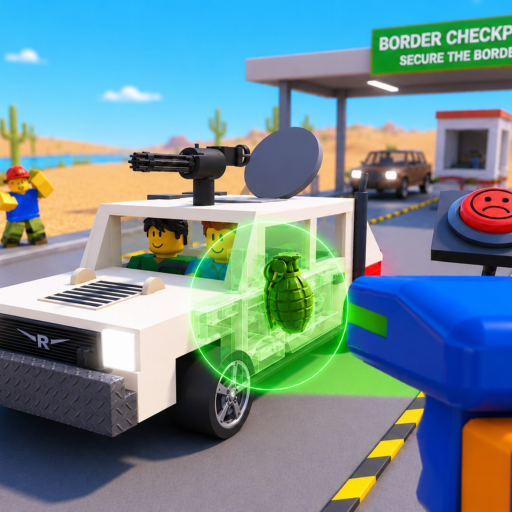
Use this gameplay example to spot moments where readability and input response matter. It does not establish an official preset or prove that a particular menu option exists.
Open the official Secure the Border Roblox experience to confirm the supported platforms and current client.
Build a five-minute baseline
Before changing anything, complete a short inspection on the current setup. Record whether you can read driver information, identify the X-ray panel, bring up trunk and engine prompts, move the camera without overshooting, and confirm a decision without accidental input.
Do not describe the baseline as “bad” based on one missed action. Write the actual failure: small document text, hidden touch control, camera overshoot, delayed prompt response, or unstable performance. A specific problem gives the next change a testable purpose.
| Test | Success condition | If it fails | What remains unverified |
|---|---|---|---|
| Document readability | Visible fields can be read without repeated camera correction | Test one current display or interface option | No universal interface-scale control was confirmed |
| X-ray visibility | Scan feedback is distinguishable from the background | Reduce visual clutter using options that actually exist | No official graphics preset was published |
| Prompt targeting | Trunk and engine prompts appear from repeatable positions | Retest camera and approach angle | Exact interaction distance is unknown |
| Input response | One action produces one intended result | Check live binding and overlapping panels | Platform button maps are not enumerated |
| Frame consistency | Camera and prompts remain usable through one vehicle | Test one available performance change | No device-specific performance target was verified |
Test one visible option at a time
Open the current Roblox and game settings and list only the options you can actually see. Change one, repeat the same baseline, and compare the named failure. If the problem improves, keep the change and move to the next bottleneck. If it gets worse, restore the prior value.
This method matters because the official platform list does not imply identical menus or device capability. A PC setting may not exist on mobile. A console label may differ from a keyboard prompt. A tablet screen may need a different touch arrangement than a phone, even though both are supported.
Avoid copying an exact slider value from a dated video unless your menu, device, and test all match. The goal is repeatable inspection, not a fashionable preset.
Tune for the task that is actually failing
For document problems, prioritize legible text and a stable view. For X-rays, prioritize contrast between the scan feedback and surrounding art. For physical searches, prioritize camera control and prompt visibility around both the trunk and engine. For accidental actions, check overlapping panels and the live control label.
Use the checkpoint controls guide to distinguish a settings problem from a position or prompt problem. If the action appears and works reliably from one position, a binding change may be unnecessary.
When performance changes over a longer shift, record when the issue begins and what is visible on screen. The official description says difficulty increases with survival time, but that is a gameplay statement, not proof that performance must decline. Keep gameplay pressure and device performance as separate observations.
Recheck the baseline after updates
The current title labels the experience Alpha, so menus, prompts, or visual feedback may change. After an update, rerun the five baseline tests before changing several options. Preserve the prior working setup as a dated note; it gives you a clear comparison.
If a setting disappears, do not write that the game is broken or that every platform lost it. Record the current platform, client date, and menu location. If the same condition repeats, use the official links to check for creator-owned information.
The best settings guide should remain a method, not an invented menu inventory. A reliable method survives when one option changes name.
Keep a short setup note after every successful baseline:
- Platform and device used for the test.
- The one visible option that changed.
- The repeated checkpoint task.
- The exact improvement, failure, or unchanged result.
Frequently asked questions
What are the Secure the Border best settings?
No universal official preset was verified. Use the live menu to test document readability, X-ray visibility, prompt targeting, input response, and frame consistency on your device.
Does Secure the Border support mobile and console?
Yes. The official description lists PC, Mobile, Tablet, and Console, but it does not publish identical controls or settings for every platform.
Which graphics setting improves the X-ray?
No specific official option or value was available. Change one visible setting at a time and keep it only if the same scan test becomes easier to read.
Should I reset all settings after an update?
Not automatically. Rerun the baseline, identify the changed failure, and adjust only the affected option so you preserve what still works.